

Have you ever needed to check your emails but couldn’t because you didn’t have an internet connection? Knowing how to use Gmail offline mode can solve this problem. Gmail’s offline mode allows you to access your emails, read them, and even compose new ones, all without needing an internet connection. In this article, we will show you step-by-step how to set up and use Gmail offline mode. By the end, you’ll be able to manage your emails even when you’re offline.

Why Use Gmail Offline Mode?
Before learning how to use Gmail offline mode, it’s important to understand why it’s useful. Gmail offline mode is perfect for situations where you may not have reliable internet access, such as when you’re traveling or in areas with poor connectivity. It lets you work on your emails while offline and automatically sends them once you’re connected again.
This feature is especially helpful for people who travel often, or those who want to get work done without being interrupted by internet issues. By using Gmail offline mode, you can stay productive and keep managing your inbox efficiently.
Step 1: Check Your Browser
The first thing to do when learning how to use Gmail offline mode is to make sure you are using a compatible browser. Gmail offline mode works best with Google Chrome. So, if you’re using another browser, switch to Chrome for the best experience.
If you don’t have Chrome yet, it’s easy to download and install it from the official Google website. Once you have Chrome, follow the steps below to enable offline mode.
Step 2: Enable Offline Mode in Gmail
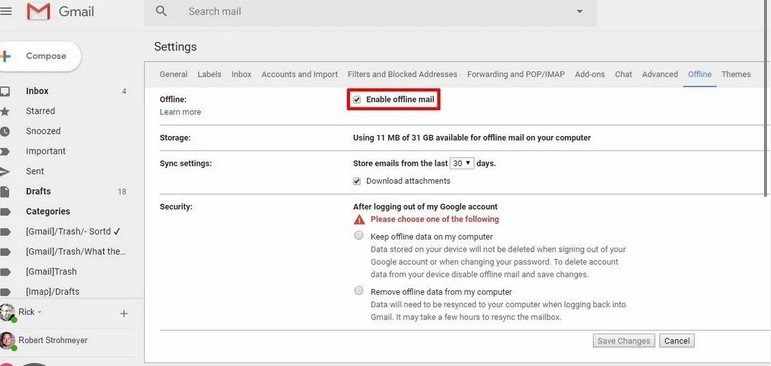
Now, let’s move on to how to set up Gmail offline mode. Follow these simple steps to enable it:
- Open Gmail on your desktop or laptop.
- Click the gear icon in the top-right corner and select “See all settings”.
- Go to the “Offline” tab.
- Check the box that says “Enable offline mail”.
- Choose how many days of emails you want to store offline. You can select up to 90 days.
- Click “Save Changes”.
Once you’ve completed these steps, Gmail will start downloading your emails for offline use. You can now access them even when you’re not connected to the internet.
Step 3: Access Gmail Offline Mode
After enabling offline mode, you can begin using Gmail without an internet connection. To access your Gmail while offline:
- Open Google Chrome and go to Gmail as usual.
- Even if you are not connected to the internet, Gmail will show you your emails that were downloaded earlier.
- You can read, search, and even compose new messages. The messages will stay in your Outbox until you’re back online.
If you need to reply to any emails, you can do so while offline. Once you reconnect to the internet, Gmail will automatically send your replies.
Step 4: Manage Your Emails While Offline
Once you’ve enabled Gmail offline mode, you can manage your inbox just like you would if you were online. You can:
- Read Emails: All emails downloaded while you were connected will be available for offline reading.
- Compose New Messages: If you need to write a new email, you can do so while offline. The message will be sent when you reconnect to the internet.
- Delete Emails: You can delete emails that you no longer need. The changes will sync once you are online again.
- Organize Emails: Use labels or move emails into different folders to keep things organized, even when offline.
By using these features, you can stay productive while on the go, even without a stable internet connection.
Step 5: Synchronize Your Emails When Reconnected
Once you’re back online, Gmail will automatically sync all the actions you took while offline. This means that any emails you sent, deleted, or organized will be updated in your Gmail account. You won’t have to do anything extra—just reconnect to the internet, and Gmail will take care of the rest.
It’s important to note that the changes will not take effect until you are connected again. So, don’t worry if your sent messages don’t appear in your Sent folder immediately—they’ll show up once Gmail syncs.
Conclusion
In conclusion, learning how to use Gmail offline mode is a great way to manage your emails without needing an internet connection. Whether you’re traveling or dealing with unreliable internet, offline mode allows you to read, write, and organize your emails at any time. By following the steps above, you can set up and use Gmail offline mode in just a few minutes. Stay productive, even when you don’t have an internet connection, and enjoy the convenience of managing your emails anytime, anywhere.

